EveDeck
EVE preview/control panel for multi-account setups.
What is this?
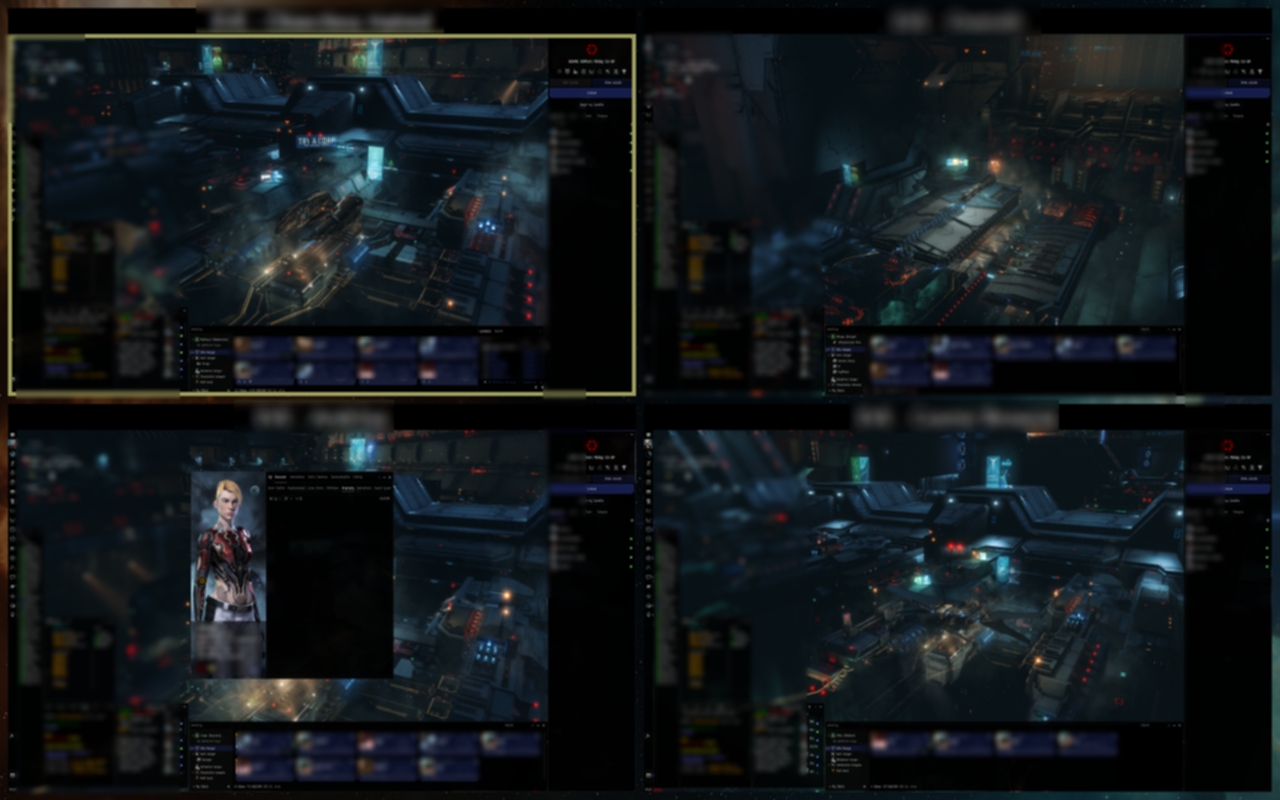
EveDeck is a compact “mission control” for multiboxing in EVE Online: it
shows live window previews in a grid and lets you jump to any client
fast.
It is not EVE-O Preview. It is basically EVE-O Preview
on crack — same idea, but built for touch control, bigger account
stacks, and custom layouts without the fuss.
Core Features
- Live preview grid for multiple EVE Online clients, with per-tile status labels (OFFLINE / NOT FOUND / THUMB FAIL).
- Click any tile to activate its client; hotkeys for slots 1-4 plus optional extra hotkeys for higher slots.
- Auto-layout grid based on account count, or manual rows/cols/slot count.
- Dedicated control panel forced fullscreen on the right-most monitor; always-on-top overlay for labels and focus indicators.
Visuals and Layout
- Optional background image (bg.png/jpg/jpeg/bmp/gif) or solid color fallback, with adjustable background opacity (previews remain full opacity).
- Title strip with optional background bar (full width or text-wrap mode), customizable colors, fonts, and padding.
- Adjustable panel margins, tile gaps, label height, and spacing.
Active-Tile Focus
- Focus indicator modes: frame, corner badge, or diagonal ribbon; customizable colors, text, position, thickness, and size.
- Option to follow the real foreground window and auto-highlight its tile.
- Option to hide the active preview and reduce opacity of inactive previews.
Mumble Integration and Click-Through Hole
- Click-through hole to be able to embed RIFT windows.
- Optional right-column Mumble thumbnail by window title/exe.
- Optional click-through hole under the Mumble tile, with configurable size and offset.
Input and UX
- Mouse snap-to-default behavior is temporarily disabled while running and restored on exit.
- Mouse cursor is kept on the primary monitor; after activation it returns to the last known primary-monitor position.
- Exit hotkey (Ctrl+Alt+Q by default) and optional Esc-over-panel exit.
- Tray icon with right click menu.
Reliability and Scaling
- Per-monitor DPI awareness, automatic scale and layout refresh on DPI change.
- Optional on-screen debug overlay.
Requirements
- A secondary display for the control panel: either a tablet running Spacedesk, or a portable touchscreen monitor. Or any monitor will work but you will not have touch controls and will have to rely on the hotkeys you setup.
Additional Info
- EveDeck targets the right-most monitor for the control panel.