
Command your fleet.
One window at a time.
Windows-only window layout manager for EVE Online multiboxing. Live client previews, hotkey focus switching, resolution-independent profiles — all from a single Windows app.
v1.55.0 for Windows. Installer (Start Menu shortcut, uninstaller), on the Microsoft Store (auto-updating), or as a portable zip.
Built to run your fleet, not just decorate it
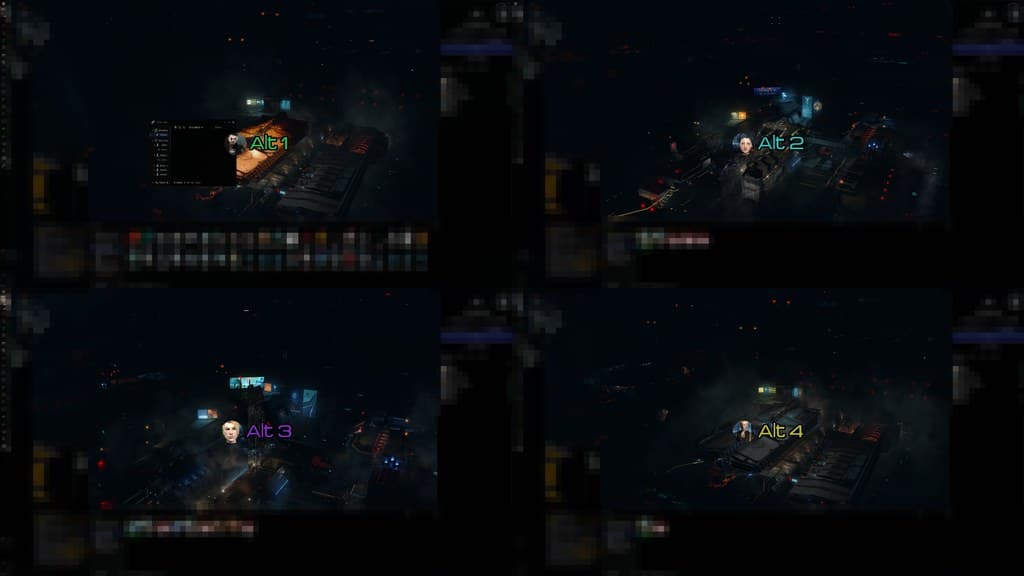
See every client at a glance
Live thumbnails of every background client, powered by Windows' own DWM thumbnail API — the OS compositor draws them, so EveDeck renders nothing itself. Hover to peek a client into your main window without committing; click to make the swap permanent.
- DWM thumbnails by default, GPU capture optional
- Hover to peek, click to commit
- Whole-window previews only, by EULA design
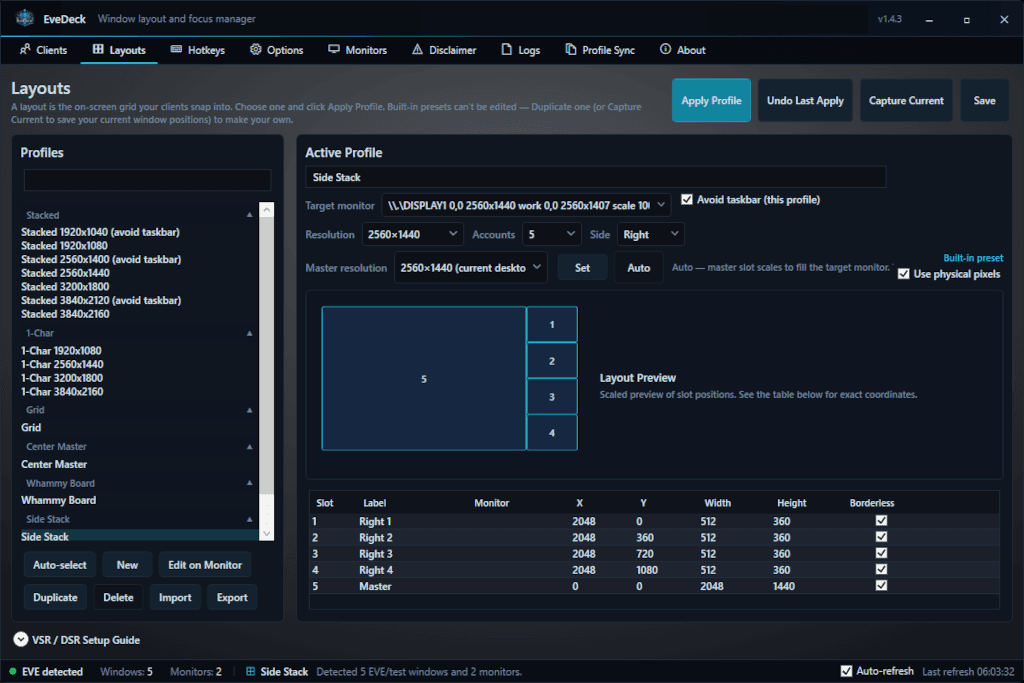
Layouts that fit your setup, not the other way around
Built-in Grid, Center Master, Whammy Board, Side Stack, and Twin Stack families for 2-15 accounts, or build a custom profile that spans multiple monitors with the on-screen editor. Profiles scale to whatever resolution you're running — no rebuild needed for VSR or DSR.
- 5 built-in families, 2-15 accounts
- Custom profiles can span multiple monitors
- Resolution-independent — 1440p, 4K, VSR/DSR
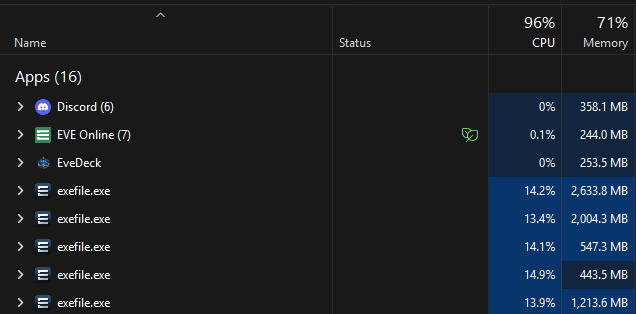
Barely there
On the default path EveDeck renders nothing itself — previews are the OS compositor's own thumbnails. Across a real 5-account session it typically sits at 0-5% CPU and 150-500MB RAM, less than a single instance of Discord.
- 0-5% CPU, 150-500MB RAM
- No render pipeline of its own by default
- Background clients auto-deprioritized
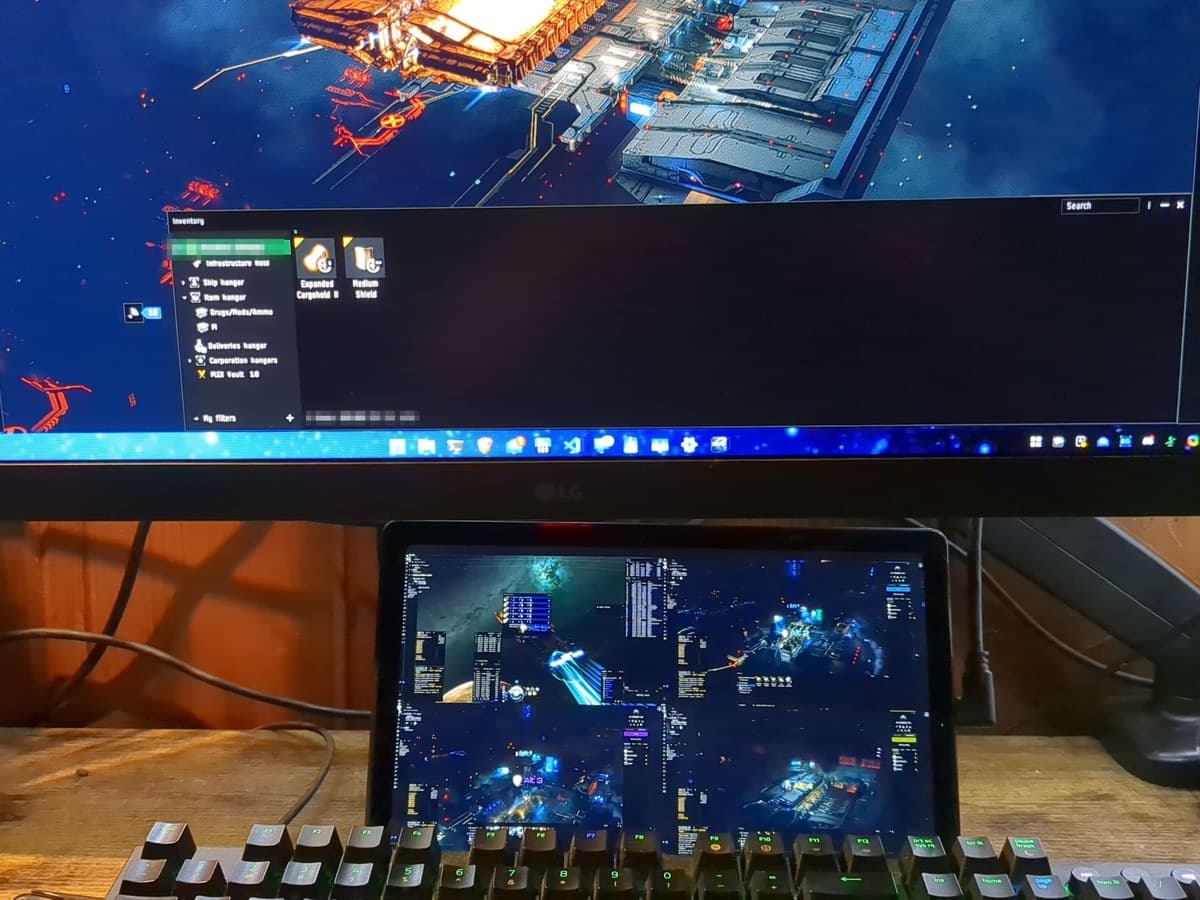
Extend your desk without another monitor
A phone or tablet connected over USB, running a screen-extension app, shows up to Windows as a normal display — drop an extra seat or two on it and build a custom multi-monitor profile around it.
- Works with USB screen-extension apps
- Custom profiles span any connected display
- One profile drives the whole desktop
Everything you need for multiboxing
Previews & peek
- Previews show live thumbnails of your background EVE clients via Windows' own DWM thumbnail API — the OS compositor does the drawing, so EveDeck renders nothing of its own.
- Optional GPU capture (Windows Graphics Capture) can drive the tiles instead, for sharper thumbnails at small sizes, with a frame-rate cap you set anywhere from 5 to 60 FPS. DWM thumbnails stay the default, and any tile GPU capture can't serve falls back to one on its own.
- Hover over any preview to peek that client into the master rect — the displaced master moves to the tile's position. Leaves on cursor exit.
- Click a tile to commit the swap: the client becomes your new master slot.
- Overlay windows are transparent tool windows that never steal focus or appear in the taskbar.
Layout profiles
- Profiles store slot positions as fractional rects and scale to whatever monitor resolution you're running at — no rebuild needed for VSR or DSR.
- Built-in Grid, Center Master, Whammy Board, Side Stack, and Twin Stack families for 2–15 accounts — each targets a single monitor you pick from a dropdown.
- Custom profiles can span two or more physical monitors: build one with the on-monitor WYSIWYG editor and drag slots onto any connected display — one profile drives the whole desktop, no per-monitor juggling.
- Drag slots on the mini-map to assign which account corner positions and per-profile master.
- Apply a profile to all detected EVE clients in one click or bind it to a hotkey.
Character identity & ESI
- Link EVE accounts with PKCE OAuth via Fenris Creations' ESI — portraits and character names appear on every tile.
- Fixed seat model: each account always occupies the same slot number regardless of which window is currently centered.
- Setup wizard walks you through pairing accounts in under two minutes.
- Per-seat custom labels work alongside ESI names so you can alias alts.
- A seat holds up to three characters; pick which one is the main with a single click and its portrait, info flyout and skill queue become the seat's. Your typed seat label is left alone.
Hotkeys & focus control
- System-wide hotkeys registered with Win32 RegisterHotKey — no window focus required to trigger them.
- Gated mode dynamically unregisters hotkeys when EVE isn't the foreground app, so bare keys never hit EVE chat.
- Built-in actions: focus slot N, cycle forward/back, apply layout, swap active window to master, toggle borderless.
- Direction hotkeys (focus left/right/up/down) navigate the grid spatially based on seat positions.
- Cycle groups give each swap group its own forward/back hotkeys, so you can rotate just your scouts or just your DPS; shift-click a preview to drop a seat out of the rotation without unassigning it.
Desktop & system
- Borderless windowed mode strips title bars and borders without changing EVE's internal resolution.
- Atomic window moves use BeginDeferWindowPos so all clients reposition in a single pass with no visible flicker.
- Minimize to tray, launch with Windows, and auto-apply layout when new clients are detected.
- Settings backup snapshots on every launch — rolling recent and daily backups with one-click restore or JSON export.
- Active client frame: an outline follows whichever EVE window currently has focus, with adjustable thickness, radius, and colour. Ten styles to choose from — Snapshot, Solid, Dashed and Dotted, plus six animated ones: Neon, Breathing glow, Shimmer, Rainbow, Electric arc and Zigzag.
Notifications
- Toasts are styled like a modern chat app — the character's portrait, a clear title, and a slide-in animation — and are clickable to jump straight to that client.
- Long alerts scroll inside the card instead of running down the whole screen, and hovering keeps a toast open so you have time to read and scroll it.
- Toasts stay on top of the previews and of allow-listed apps (Discord, Mumble, ...) while they're on screen, with a toggle in Options if you'd rather they didn't.
- The toast stack can anchor to any screen corner or edge (default bottom-right, above the system clock).
- Every toast is also mirrored into the real Windows Notification Center, so alerts are still reviewable from the clock flyout after EveDeck's own popup has faded.
Profile Sync
- Auto-discovers all EVE settings folders under %LOCALAPPDATA%\CCP\EVE — picks up every resolution and server.
- Resolves character names from Fenris Creations' public ESI API and shows portraits for instant recognition.
- Select one source character on the left, check any number of targets on the right, click Copy.
- Also syncs per-account (core_user) files — window positions live there, so the copy is truly 1:1 and the UI is uniform across every client.
- Originals are timestamped and backed up before overwriting — safe to undo by hand if needed.
Launch Groups
- Character Sets keep multiple named rosters (e.g. a mining fleet vs. a combat fleet) so you can switch your whole lineup without re-linking accounts.
- Launch Groups open the EVE Launcher once per character in a set, spaced by a configurable delay, instead of clicking Play by hand for every account.
Every layout family, visualized
Up and running in minutes
Run it
Download the portable zip, extract it anywhere and run EveDeck.exe — no install needed. EveDeck tells you when a new version is out; extract the new zip over the old folder to update. Or get it from the Microsoft Store to have Windows keep it updated. No .NET runtime needed either way — everything is bundled.
Complete the wizard
The first-run wizard walks you through choosing your display, linking your EVE characters via ESI OAuth, and selecting a layout preset — under two minutes start to finish.
Apply and multibox
Click Apply Layout. EveDeck positions your clients and previews appear instantly. Hover to peek, click to swap, or use hotkeys to navigate your fleet from the keyboard.
Common questions
Yes. EveDeck is a window manager — it only moves and styles OS windows. It never reads EVE memory, injects code, broadcasts input across clients, or automates gameplay. One human input always controls one client at a time, which keeps it fully EULA-compliant.
Ready to take command?
EULA-safe and ready in minutes. Download EveDeck and manage your EVE fleet the right way.
Prefer the Microsoft Store or the portable zip? Both work too.